Lead Analysts: Prabhakaran R, Jeewan Singh Jalal
When a service you rely on goes down, you look for answers, and attackers know it. After the Microsoft outage on Nov. 12, KnowBe4 Threat Lab observed a sharp rise in outage-related email.
Read on for what we found, what the lures looked like, and how to protect your organization.
Key Findings
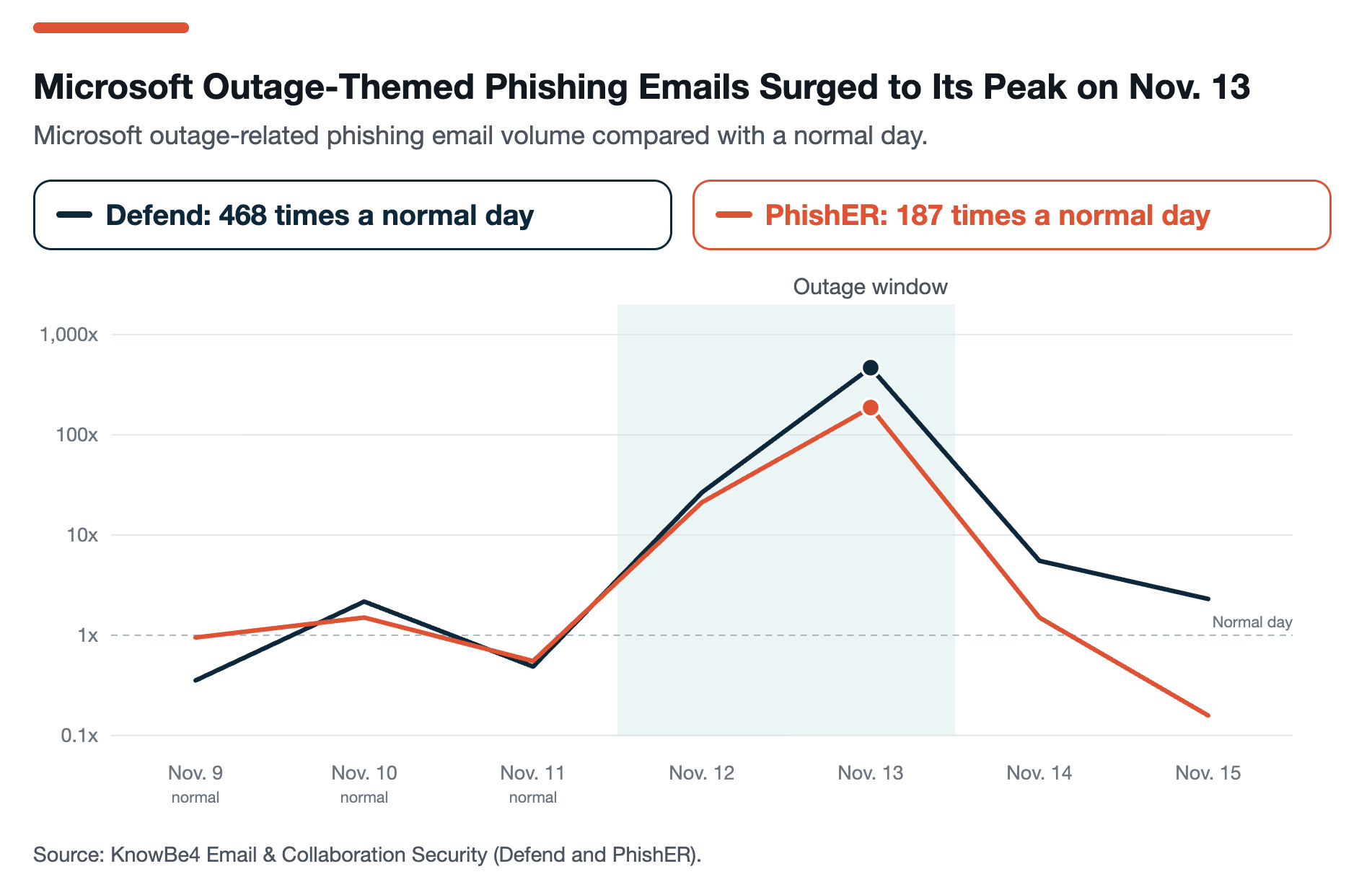
- The surge peaked on the second day of the outage. On Nov. 13, outage-related phishing emails reached about 468 times the Nov. 9 to Nov. 11 daily average in detections and about 187 times that average in user reports, across KnowBe4 Email & Collaboration Security (PhishER Plus and Defend).
- The lures were built to look like Microsoft. The lures we reviewed used a held-messages notice, a fake security check, an Exchange service notice, and a Teams notification.
- One lure cited Microsoft's real incident number. A correct incident number does not make an email genuine.
- The goal appears to be sign-in access. All four emails appear designed to steal sign-in access, through credential harvesting or device code phishing.
What Happened in the Microsoft Outage?
On Thursday, Nov. 12, a global outage hit the networking gateway that fronts many Microsoft 365 services. According to Microsoft's preliminary post-incident report for incident MO1550821, dated Nov. 15, the incident ran from Nov. 12, 2026 to Nov. 13, 2026. It lasted nearly 24 hours and reached users around the world. Microsoft listed 14 affected services, including Exchange, Teams, SharePoint, OneDrive, and Copilot.
Exchange Online took the biggest hit. Most users could not reach their mailboxes, and email delivery was delayed for many. Microsoft said the outage came from a chain of events, not a single failure:
- A hidden defect. A software fix deployed to the gateway servers in July contained a flaw that caused servers to stop responding under certain loads. It ran for more than three months without problems.
- More load, less capacity. About 15 hours before the outage, Teams traffic moved to the gateway that also supports Exchange Online. At the same time, nearly 14% of server capacity was out of service for an unrelated reason.
- A cascade. Servers that failed pushed traffic onto fewer healthy servers, which then failed too. At its lowest point, more than 80% of servers were unresponsive.
Teams, OneDrive, and SharePoint could move away from the gateway and partly recovered sooner. Exchange Online could not, so email stayed disrupted. Recovery took longer because servers that returned to service were overwhelmed again by waiting traffic. Microsoft also extended the email delivery window so delayed messages were not returned as undeliverable. The report is preliminary, and a final report will follow.
How Big Was the Surge in Outage-Themed Phishing Emails?
Phishing activity followed the outage. The peak came on the second day, Nov. 13, when outage-related email reached about 468 times the Nov. 9 to 11 daily average in detections and about 187 times that average in user reports.
What Did the Outage Lures Look Like?
We reviewed sender and subject patterns across all matched emails, and the message body of four examples. The first two use the subject "Outage -" plus a random string. The other two use different subjects.
| Lure | What it says | What it wants |
|---|---|---|
| Held messages | Copies a Microsoft notice. Cites Microsoft's real incident number for the Nov. 12 outage, lists the affected services, and says four messages are held and will be deleted within 24 hours. | A click on "Restore Messages." |
| Fake security check | Claims to be from a support desk and says "1 security issue found on your account." | A click on "Take Action," the only button in the message. |
| Exchange service notice | Styled as Microsoft Support, with the subject "Action Required: Microsoft Exchange Service Interruption" and a date. Refers to "our recent server outage" and asks you to update your email to avoid further disruption. | A click on "Update Email Now," pushed by a red "ACTION REQUIRED NOW!" banner. |
| Teams notification | Looks like a Microsoft Planner task notification assigning you a document to review. The subject is "Due To Microsoft Error Early- Access Doc" plus a code. It presents itself as a workaround for the Microsoft error, with an access code to "enter when prompted" that expires in 30 minutes. | A click on "Open in browser" or "Open in Teams," then entering the code. |
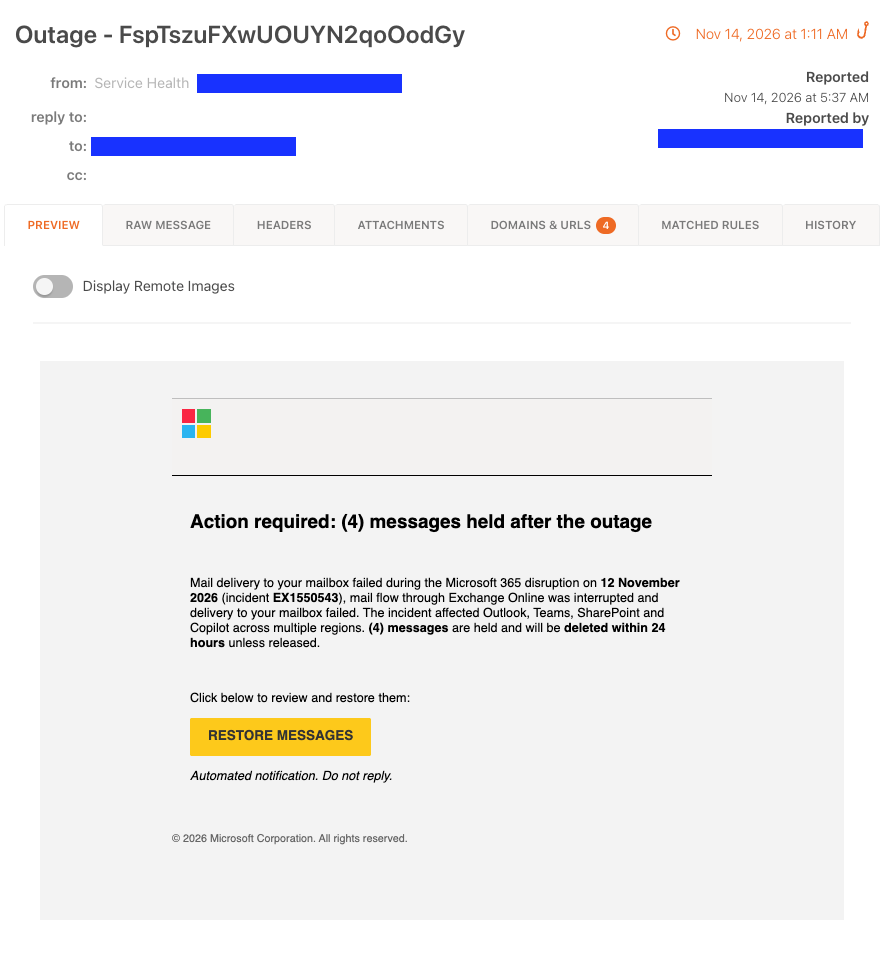
This lure cites Microsoft's real incident number and warns that held messages will be deleted within 24 hours. The deadline and the "Restore Messages" button are meant to push a quick click.
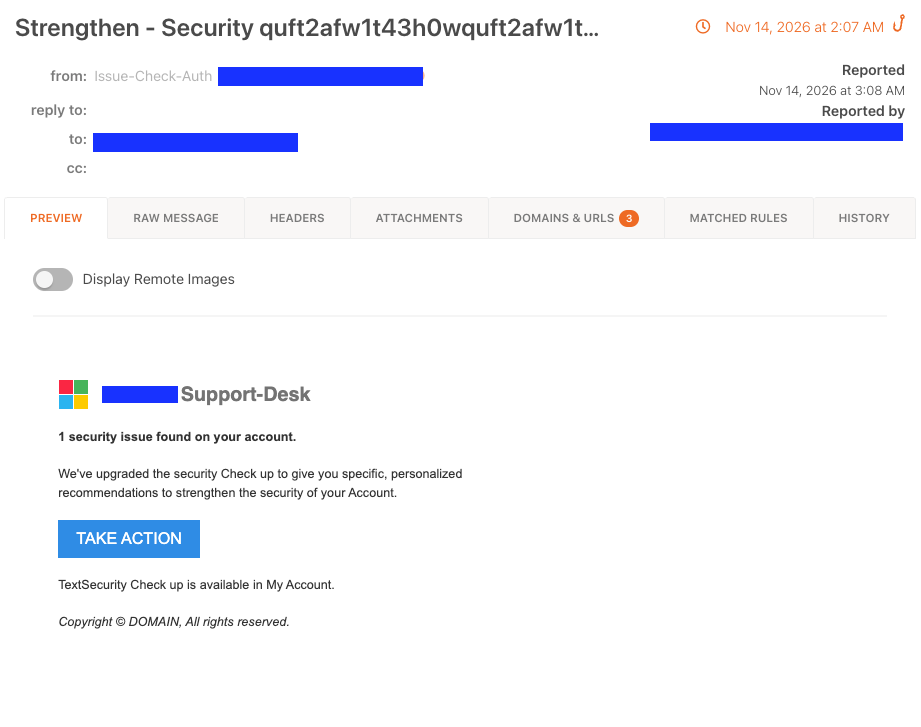
This lure states that it comes from a "support desk" rather than Microsoft and claims "1 security issue found on your account." It has a single button, "Take Action," so there is only one place to click.
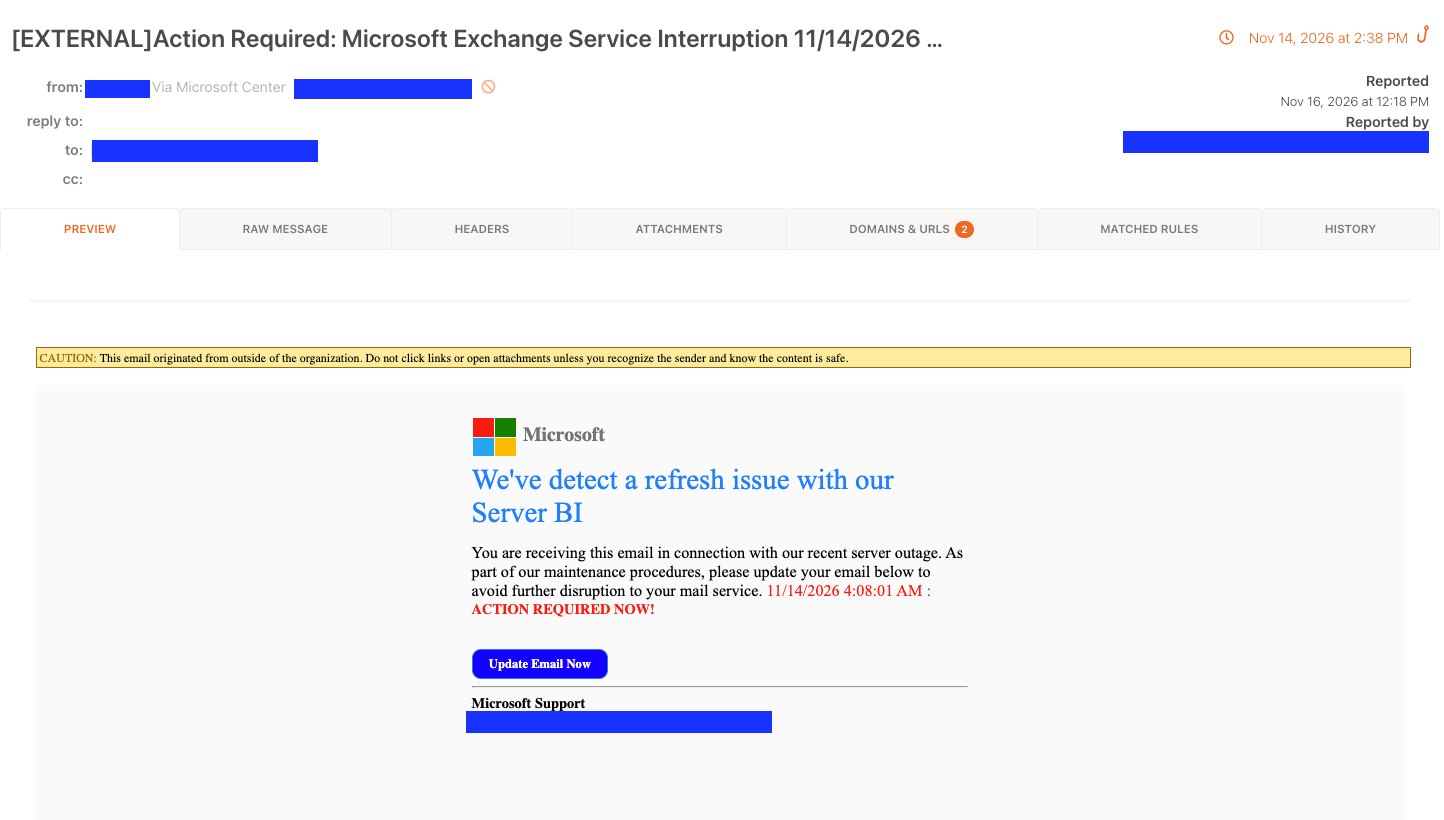
The Exchange notice has odd wording, such as "We've detect a refresh issue," which is a sign it is not genuine.
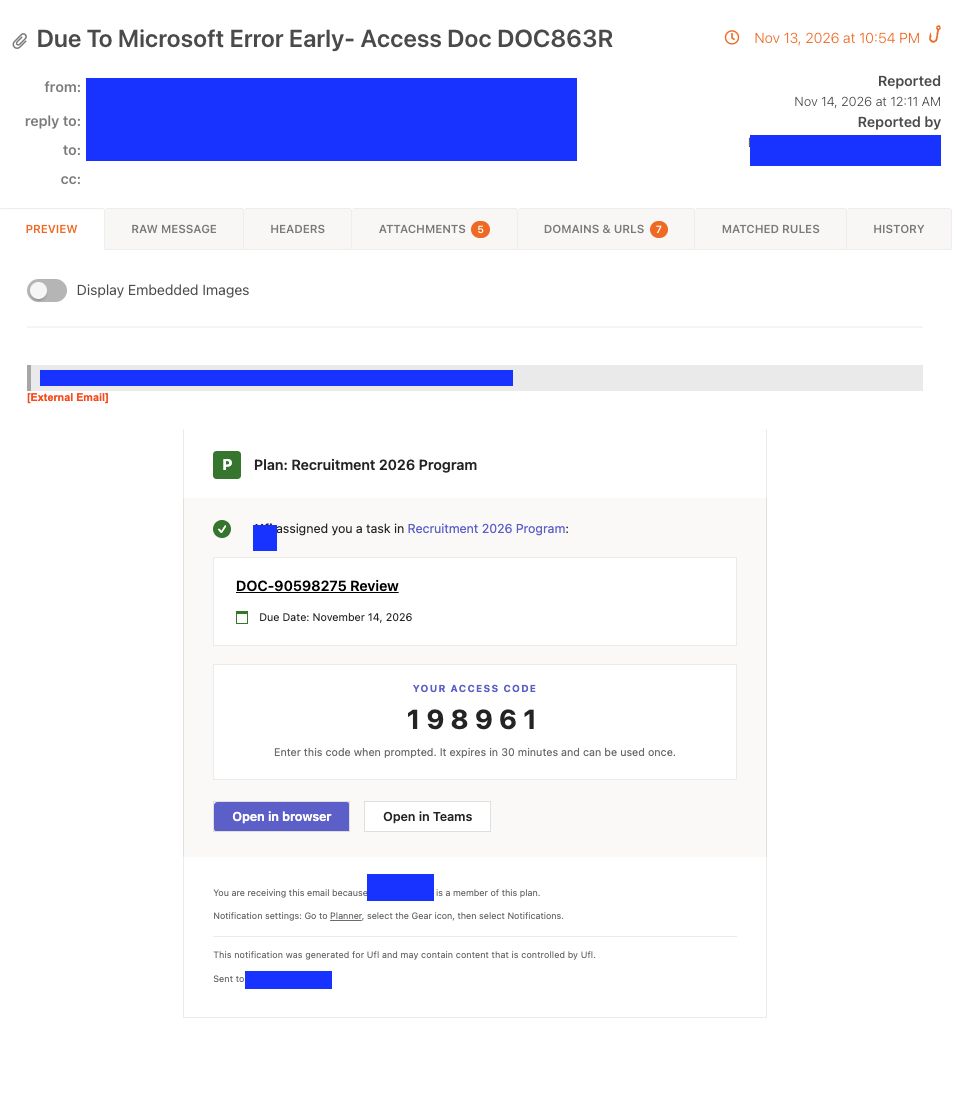
This lure imitates a Planner task notification and offers a "workaround" for the Microsoft error.
Why Do These Lures Work?
They match what people expect during an outage.
- The failure was real. Mail delivery did fail, so a warning about held messages sounds plausible.
- A security check feels natural. Users are already checking their accounts.
- A Teams notice sounds like a sensible workaround. Email is down, so another route-in seems reasonable.
All four emails appear designed to steal your sign-in access, through credential harvesting or device code phishing.
How Can You Stay Vigilant?
Outages make people more willing to click. Build these habits before the next one:
- Go to the source. Check Microsoft's official service status page or your IT team's usual channel. Do not rely on a link in an email. A real incident number can appear in a fake notice, so a correct number does not prove an email is genuine.
- Treat sign-in prompts and deadlines with care. A request to "restore messages" or log in to "restore access" is more believable when services are failing. Never enter a sign-in code from an email or a Teams notice unless you started that sign-in yourself. Open the service directly instead.
- Verify new contact details. Confirm any change in contact details sent during an outage with a contact you already know.
- Look for odd subjects and wording. Random strings, typos, urgent red warnings, and unfamiliar senders are all signs to pause.
- Question workarounds. Be wary of any message that offers another way in while Microsoft is down, such as a task, a document, or a Teams link. Confirm it with your IT team.
- Report, don't click. If an email looks wrong, use your report button instead of clicking. Your security team can then spot the attack early and act on it.
Security teams should also watch for newly seen domains that send large volumes in a short time.
How Does KnowBe4 Email & Collaboration Security Help?
You cannot stop an outage. You can limit what attackers gain from one.
KnowBe4 Email & Collaboration Security brings together KnowBe4 Defend (inbound email and messaging security), KnowBe4 Prevent (outbound email security), and PhishER Plus (incident response).
In this event, Defend detected outage-themed phishing emails as threats. PhishER helps your team act on what users report: it classifies reported messages, gives reporters instant feedback, and lets you remediate threats across every inbox with one click.
Training closes the gap. Security Awareness Training and Real-Time Coaching help your users spot urgent, outage-themed lures before they click.
Be Ready Before the Next Outage
Outages end. The habits you build for them endure. Start by asking your team one question today: where would you check first if email went down?
For real-time updates and ongoing phishing threat intelligence, follow KnowBe4 Threat Lab on X: @Kb4Threatlabs