Lead Analysts: Prabhakaran R and Jeewan Singh Jalal
You think twice before clicking a link in an unexpected email. Do you do the same for a message in Microsoft Teams?
A new message arrives in your Teams chat with the familiar notification sound, a participant’s name, and a link. It feels like a colleague, not a stranger. That feeling is the opening attackers look for.
Two things decide whether that message does harm. Can the channel stop it before it reaches your user? And if it gets through, does the user recognize the lure and know what to do? Both matter, and this post covers both.
Modern business depends on external collaboration across sales, finance, and IT. External access and guest participation are standard Teams features, not security oversights, and external access is open to all domains by default. Teams is also no longer where only people talk to people. A message could come from a colleague, an authorized AI agent/chabot, or an attacker, and most people have little to tell them apart.
Attackers exploit this openness by sending external messages that follow the same social engineering patterns as phishing emails and blend into your users' daily routine. They could also aim a message at an agent instead of a person. The question is no longer only whether a phishing message looks real. It is who and what you can trust at work.
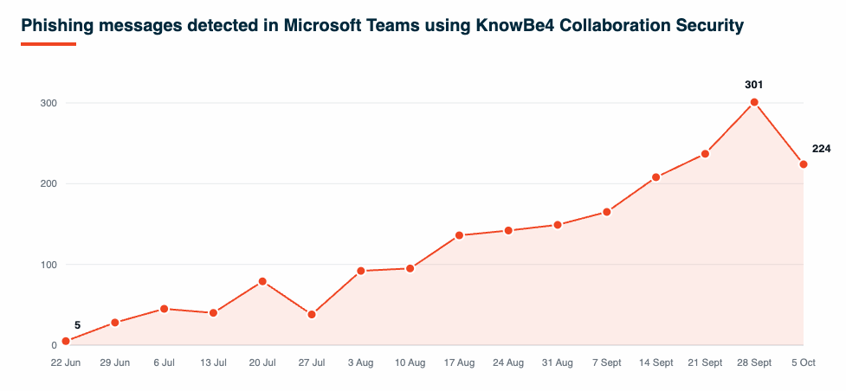
KnowBe4 Threat Labs has consistently observed attackers imitating routine messages such as support requests, invoices, and meeting chat posts. Weekly detections grew from five in the week of June 22 to a peak of 301 in the week of September 28 (Figure 1). This post covers what we observed, what the attackers are after, and how the attacks play out.
What makes these messages effective is that a phishing message in chat looks like a routine work message: a link, a support request, a payment follow-up. People may not expect an attack on this channel, so they may take such messages at face value. The words alone rarely settle it. The better question is who is sending, from where and why.
Key Findings
- Attackers follow work into Microsoft Teams. Chat and meetings now carry the lures that email has carried for years. Wherever your team works, attackers follow. A small request in chat is usually the first step toward a larger goal, such as device access, stolen money, or leverage for extortion.
- Business needs keep the door open. Teams have to stay open to customers, vendors and partners, so blocking outsiders is neither practical nor enough. Attackers blend into that traffic, so judging the words alone is not reliable. Ask who is sending, from where, and why.
- Teams have safeguards, but they depend on the user. Teams shows an external label and an Accept/Block prompt at first contact, and Microsoft Defender for Office 365 adds Safe Links and zero-hour auto purge where it is licensed. Attackers succeed when a user clicks through those warnings. Email has sender authentication, link analysis, and gateways. Conversations inside Teams sit outside the reach of third-party email gateways, and Teams chat gives fewer sender checks: display names are easy to choose, links can be disguised, and previews can mislead.
- Defense has to cover the conversation and the click. Use both Microsoft's own settings and third-party protection as your technical controls. Train your users on this threat vector, so people know what a lure in Teams looks like and how to report it. Be ready to respond fast when a user acts on a message.
Why Are Attackers Moving Into Microsoft Teams?
Chat and meetings now carry the lures that email carried for years, and the following factors make Teams an attractive place for them.
- Outside contact is normal. Your teams have to talk to customers, vendors, and partners, so external messages and guests are expected. A harmful message blends in with the many legitimate ones.
- Impersonation is easy. Email has checks that block direct domain spoofing. Chat gives fewer sender-checking signals, and a sender can often choose the name users see.
- Awareness is lower. Phishing awareness training has traditionally focused on email, so users may look harder at an unexpected email than at a chat message.
- Email security doesn’t automatically cover Teams. Many security vendors now extend protection to collaboration tools. An organization that has not extended its controls to Teams leaves that channel uncovered.
- One target list covers two channels. An attacker who already has a list of email addresses can reach the same people in Teams, where external access allows it, with little added effort. That gives them two channels to attack instead of one.
How Does an Attack in Teams Unfold?
Most attacks in a collaboration tool follow the same path, whatever the lure.
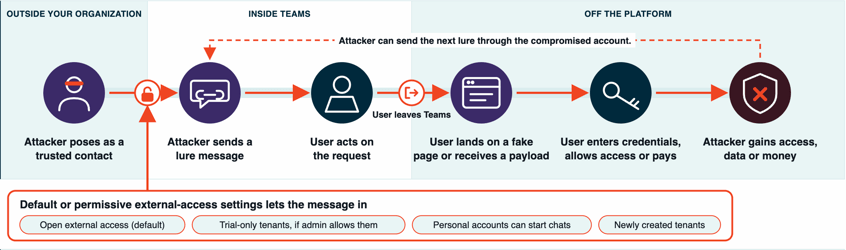
1. The attacker poses as a trusted contact. Display names are easy to choose, so the sender can appear as IT support, a vendor, or a colleague. A request from an individual account may show only the name the sender chose and an “External” label.
2. The attacker sends a lure. Default or permissive external-access settings let the message in, such as open external access, personal accounts that can start chats, or trial-only tenants that an admin has chosen to allow. The app, the notification and the chat context all look familiar, and the attacker can build the conversation slowly, so the request feels like a natural next step.
3. The user acts on the request. One step is enough: a click, a session started or a reply, because the request looks like routine work. Attackers may also call the user in Teams to talk them through the steps.
4. The user lands on a fake page or receives a payload. The user leaves Teams for the attacker’s web page, or a payload is delivered. A link can display one address and open another, and senders can edit a message after sending it, so what the user sees later may differ from the original.
5. The user hands over credentials, grants access, or pays. The fake page, tool, or payment request asks for one more action, and the user completes it.
6. The attacker gains access. The attacker now holds credentials, system access or the requested payment.
The attacker can then send the next lure through the compromised account, and the cycle repeats.
What Do Attackers Send in Teams, and What Do They Want?
The message types below are cases we observed. For each one, we describe what the attacker likely wants and where the activity can lead. The messages look different, but they serve a similar set of goals.
The “IT Support” Message
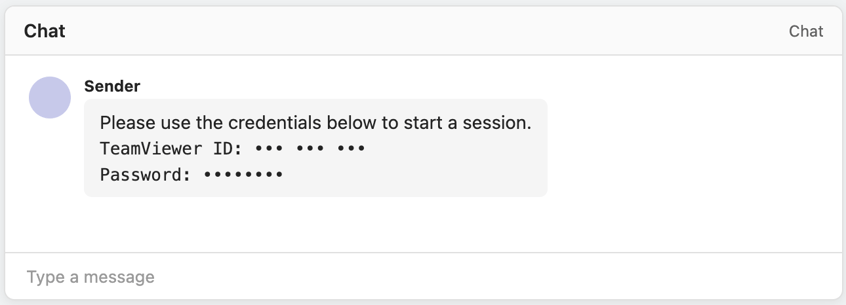
Why it works: Help desk requests feel routine, and people want their problem fixed. The user opens the session themselves, so the attacker gets access with the user’s approval.
What the attacker wants and where it leads: The likely goal is full control of the endpoint. Standard defenses often miss this because remote administration tools are legitimate software. With that access, an attacker can take saved passwords, active session cookies, and sensitive documents. This allows them to reach corporate email, Teams, and wider enterprise systems. It also gives them a foothold for lateral movement across internal networks and for deploying further remote monitoring and management (RMM) tools or ransomware.
2. The Urgent Invoice
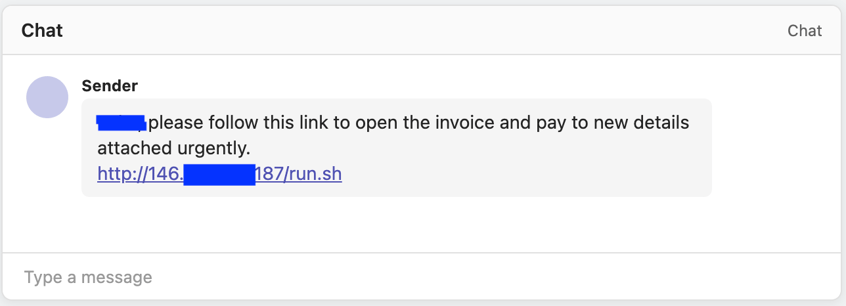
Why it works: Payment requests with a deadline push people to act before they check, and a personal greeting makes the request feel real.
What the attacker wants and where it leads: The likely goal is money, stolen credentials, malware deployment, or all three. Depending on what the target does, that can mean payments sent to an attacker-controlled account, malware that steals credentials or sets up remote access, and the compromised account being used to send similar requests to colleagues or vendors.
3. The Ransom Note in Chat
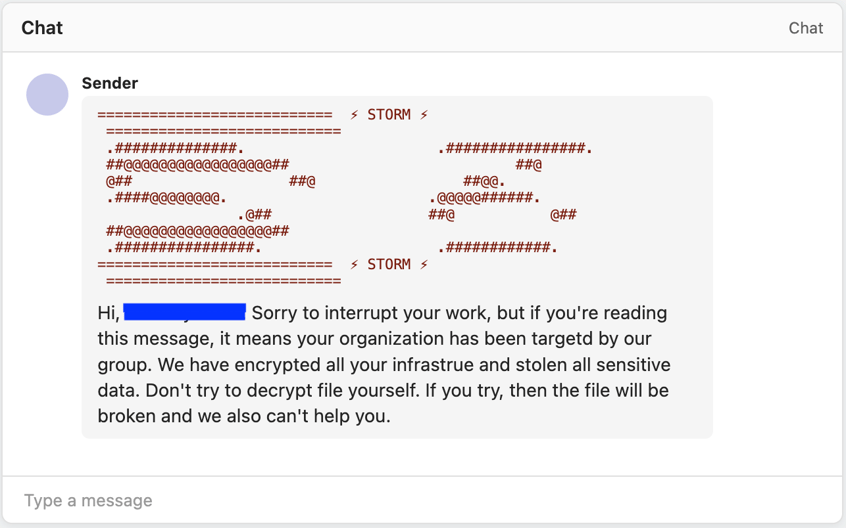
Why it works: The message reaches the user directly, with no email gateway in its path.
What the attacker wants and where it leads: The likely goal is payment or an immediate response. The first message alone rarely shows whether the claim is real: it could follow a genuine compromise, or it could be a bluff meant to exploit fear and force a quick reply. Responding under pressure risks paying a ransom for nothing, overlooking an active breach if the claim is true, or causing internal panic when nothing was compromised.
What Should Defenders Do?
Protect messages and meetings, and be ready to respond fast when a user acts on a message. Start with your people, then your Teams settings.
How can users stop these messages?
1. Treat chat like email. Teach users to question links and requests in Teams, including in meeting chats.
2. Teach the “External” label. Ask users to check it before acting on a message that claims to come from support or leadership. For individual Microsoft accounts it can be one of the few cues available.
3. Preview before accepting. Teach users to read an external message request first and to decline it if it is unexpected, even when curiosity says otherwise.
4. Check the real link. Ask users to hover over a link and read the address before clicking, because the text shown can differ from the destination.
5. Never start a remote session someone sends you. Route support requests through the help desk.
6. Verify payment changes through a second channel. Confirm new payment details by phone with a known contact before paying.
7. Treat a ransom message as an incident. Report it to your security team and do not reply.
8. Stop sharing passwords in chat. Use a password manager or a one-time secret tool.
What if a user already acted?
Plan for the click. Reset the user’s password, revoke their active sessions, check for remote-access tools they installed, and review any payment they made.
How do you narrow the door in Teams?
Attackers can only message your users if your Teams settings allow it. You control those settings, and they are worth a review. Microsoft documents each one in its Teams external access guidance . Your business needs some outside contact, so the goal is not to block everyone. The goal is to allow the contact you need and nothing more. Start by reviewing which external tenants can message your users and who can join your meeting chats.
Settings to review
-AllowFederatedUsers:turns external communication with other organizations on or off.-AllowedDomainsand-BlockedDomains:limit access to trusted partners or block malicious domains.-AllowTeamsConsumerand-AllowTeamsConsumerInbound: manage chat with unmanaged accounts and block uninvited outreach.-AllowPublicUsers: controls chat with Skype users.
1. Allow only essential partner domains. Prefer allow-lists to block-lists, because block-lists only stop known threats. Blocking a main domain still leaves its subdomains open. To block all subdomains, run:
Set-CsTenantFederationConfiguration -BlockAllSubdomains $True
2. Block trial-only tenants. Unlicensed trial tenants are easy tools for attackers. Microsoft blocks them by default, but verify that your setting is still “Blocked”:
Set-CsTenantFederationConfiguration -ExternalAccessWithTrialTenants "Blocked"
When the setting is “Blocked,” users from trial-only tenants cannot search for, chat with, call or meet with your team, and they are removed from existing chats. Setting it to “Allowed” turns these safeguards off.
3. Restrict personal accounts. Personal Microsoft accounts are harder to verify: the sender chooses the display name, and no organization vouches for the account. Disable: AllowTeamsConsumerInbound to stop inbound chats from them, and evaluate AllowTeamsConsumer and -AllowPublicUsers against your needs.
4. Block malicious senders. You can block a harmful sender individually without changing global policy:
-
In the Teams admin center, go to Users > External access.
-
Turn on “Block specific users from communicating with people in my organization.”
-
Select “Block a user”, enter the person’s email address or messaging resource identifier (MRI), and select Apply.
The list holds a maximum of 200 users. You can also manage it with Set-CsTeamsExternalAccessConfiguration.
Where Can KnowBe4 Help?
Attackers move between channels, and a single campaign can use several. Reputation checks and sender history say little about a message from someone who has joined a meeting you are in. Protection has to read the message and respond when a user acts on it.
KnowBe4 Email & Collaboration Security brings together KnowBe4 Defend (inbound email and messaging security, including Microsoft Teams), KnowBe4 Prevent (outbound email security) and PhishER Plus (incident response). Its behavioral AI protects the conversation and coaches your workforce wherever work happens.
Multi-engine detection. KnowBe4 analyzes message text, sender relationships, links, and attachments at the same time, plus email headers when the message is an email. It checks what the message asks the user to do and how the sender relates to the recipient. A domain reputation check sees neither.
Coaching at the point of risk. Contextual coaching, real-time nudges, and localized banners and tags in 13 languages show users why a message looks suspicious at the moment it appears. According to KnowBe4 internal data, 97% of users stop before proceeding with a high-risk action when a teachable moment appears.
Threat intelligence. KnowBe4 Threat Labs turns real-world attack telemetry and more than 15 years of data into live detection models across the Email & Collaboration Security suite, so defenses update as new patterns appear.
Protect the Places Your Team Works
Your people spend their day in email, chat and meetings. Your security should cover all these.
See how KnowBe4 Email & Collaboration Security helps protect your digital workforce.